A reference photo can supply something a written description misses: the shape of your dog’s ears, the tilt of a smile, or the way a familiar garden is arranged. The useful question is not just “Can you turn this into art?” It is “Which parts of this image should survive the change?”
Choose one main job for the reference before you write the prompt. A photo used to preserve a pet’s appearance needs different instructions from a photo used only for its lighting or composition.
Decide what the reference is for
| Reference job | Keep | Possible change |
|---|---|---|
| Subject appearance | Recognizable features and markings | Background or illustration medium |
| Composition | Subject placement, angle, and open space | Objects, setting, or colors |
| Style | Texture, shapes, or visual treatment | Subject and arrangement |
| Lighting | Light direction and shadow character | Person, object, or location |
Some generators provide separate controls for different reference roles. For example, Adobe documents composition references separately from style controls. Names and available controls vary by tool; an image attachment alone does not tell the generator which role you intend.
A pet portrait example: preserve the markings, change the medium
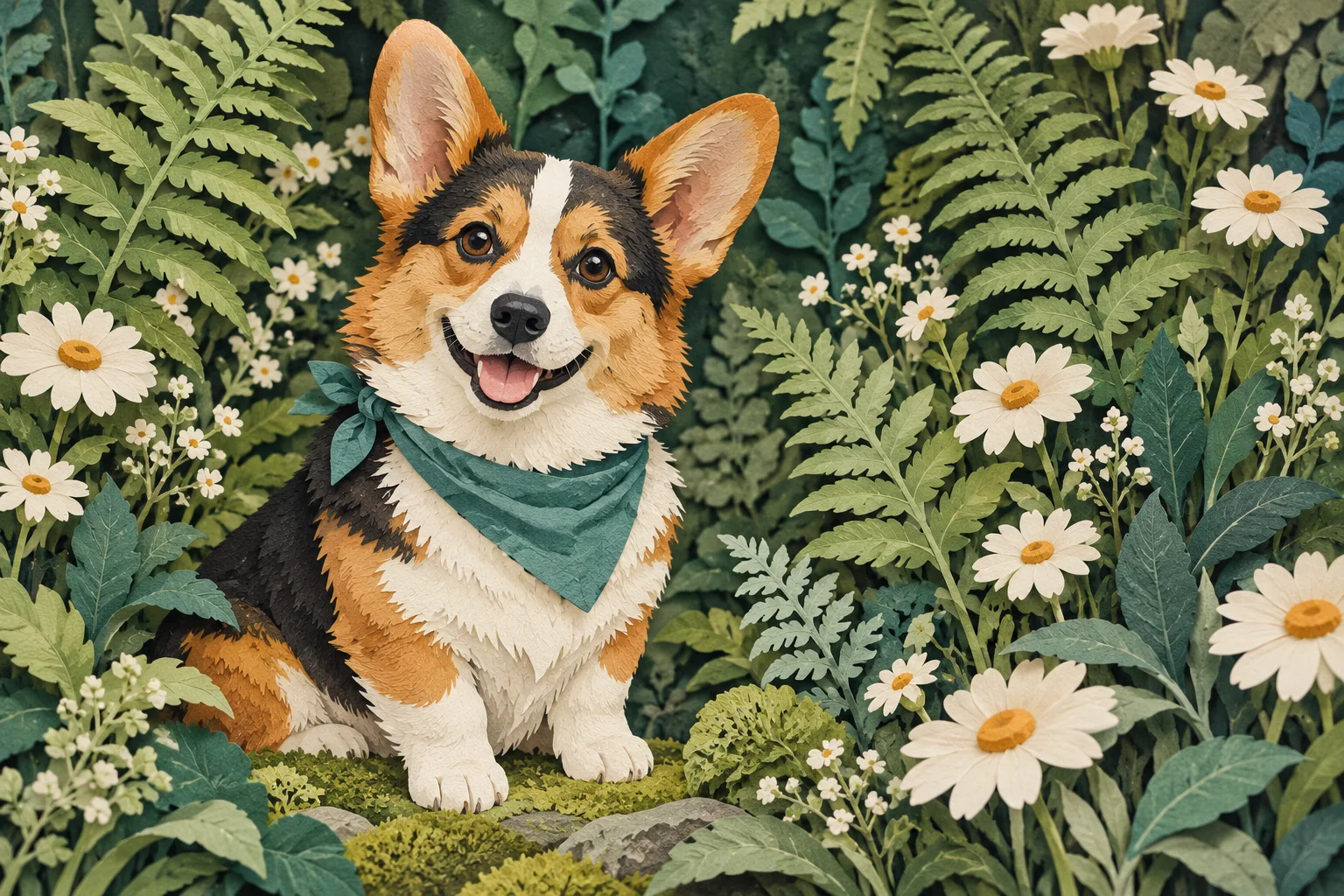
For the corgi illustration in this guide, the recognizable details are the upright ears, central white blaze, rust cheeks, dark saddle, short legs, and teal bandana. The layered-paper treatment and garden can change without being the pet’s identity.
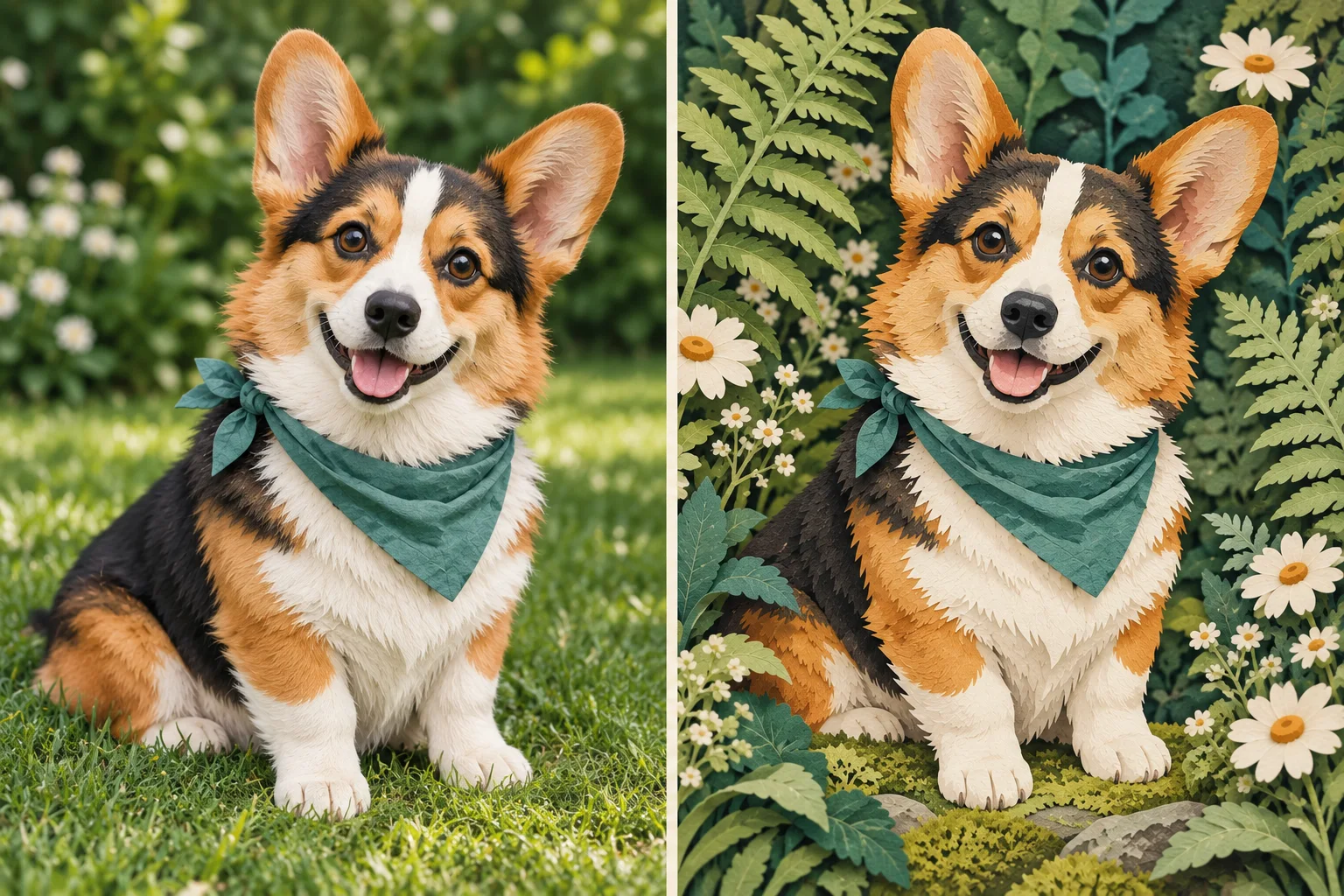
With your own pet photo attached, adapt this prompt:
Use the attached photo as the reference for this dog’s appearance. Preserve the ear shape, white facial blaze, coat markings, body proportions, and teal bandana. Reinterpret the dog as a layered cut-paper illustration seated among ferns and cream daisies. Use visible paper edges and gentle layered shadows. Keep the dog as the clear focal point. Do not add clothing, extra animals, lettering, or a different collar.
Replace those details with the ones in your actual photo. Do not ask to preserve a teal bandana if your dog is wearing a red collar. The prompt should describe your reference, not compete with it.
Choose a source that shows the important details
Use the original file when you can. For a face or pet, choose a view where the features you want preserved are visible and reasonably clear. A dark, distant subject or a heavily filtered photo leaves more for the generator to invent.
If you attach several images, explain each one: “Image one shows the dog; image two is only a reference for the paper texture.” Too many unexplained references can create conflicting directions.
Use images you own or have permission to use, and be considerate about uploading other people’s personal photos.
Review the result in two passes
- Check what should stay. Compare ears, markings, proportions, expression, or the arrangement you wanted. A beautiful image can still miss the point if it no longer resembles the subject.
- Check what should change. Does it actually use the requested medium, background, or palette? Is it a convincing new treatment rather than a filter laid over the photo?
Try a specific revision: “Restore the wider white blaze between the eyes. Keep the paper texture and garden unchanged.” This gives you something concrete to assess. Save the version you liked before making another edit.
When the result keeps drifting
Return to the original reference instead of repeatedly editing a version that already lost important features. Reduce the number of requested changes. A new pose, dramatic lighting, unfamiliar setting, and different medium all at once can make it harder to preserve identity.
For a series of the same invented character, use a reusable visual reference and the workflow in our character-consistency guide. If you only want the light from a photo, our lighting-prompt guide helps you describe that without importing the whole scene.
When you are ready to print
Choose a product and its options, then upload your finished image or create one in the design step. Review the placement and adjust the crop before ordering. Automatic AI upscaling and print preparation are included with every order. Start with your best original file; preparation can increase working resolution and improve apparent detail, but it cannot reliably repair severe blur, incorrect anatomy, or garbled text.
About these examples
PrintAIArt created these illustrations with AI to explain the choices in this guide. They are illustrative examples, not a controlled comparison of image generators or a promise of identical results from the suggested prompts. Ordering guidance was reviewed on September 30, 2026.