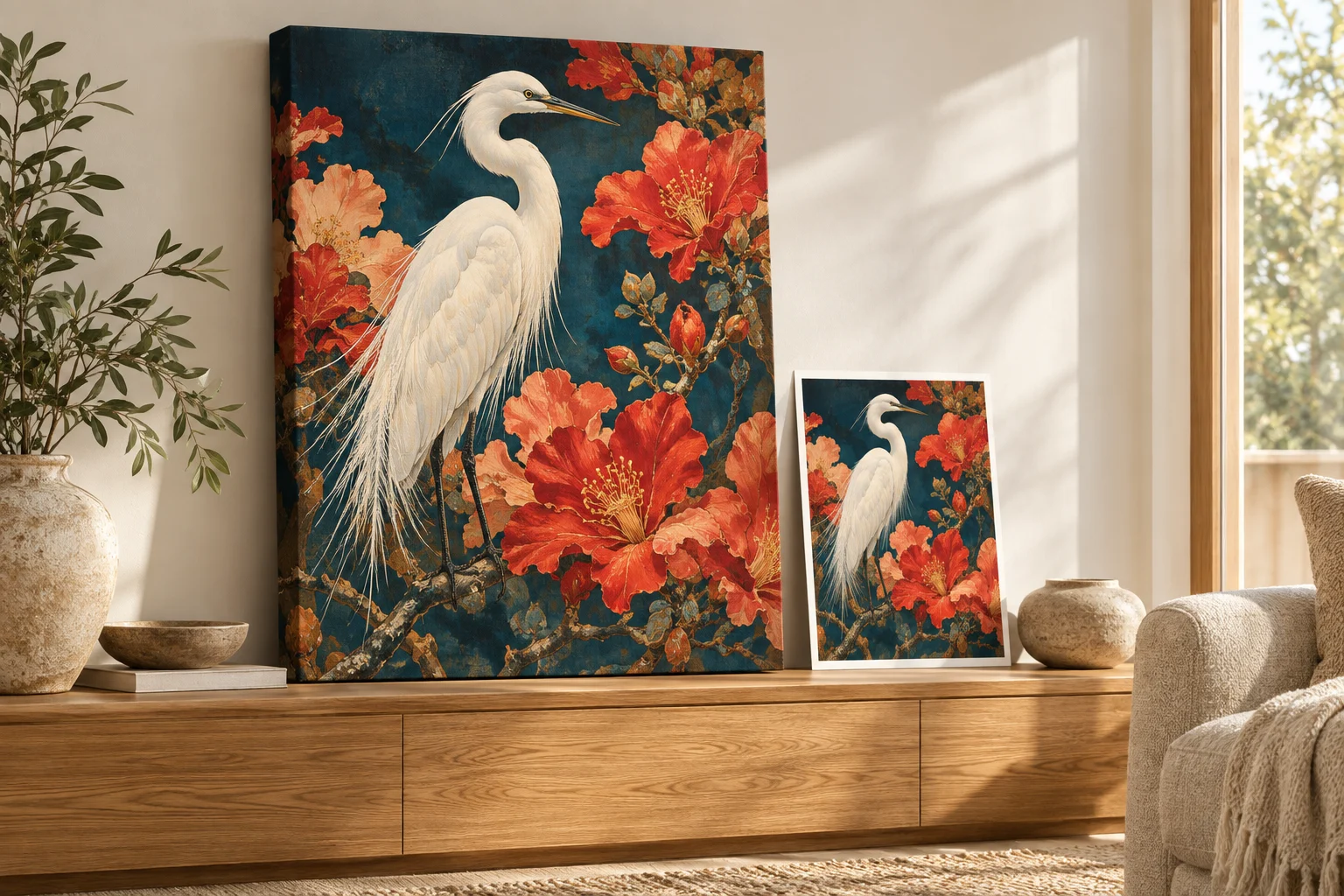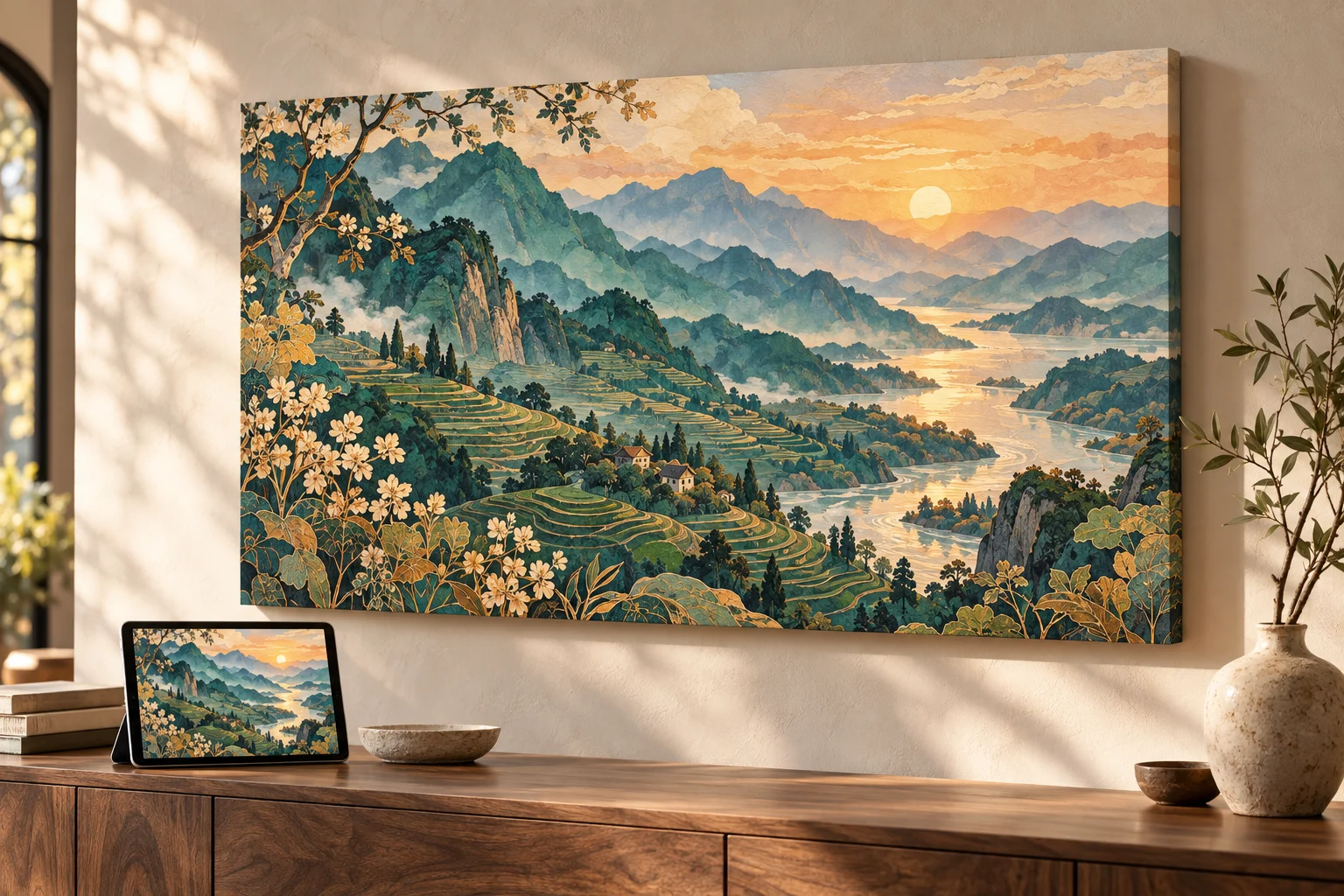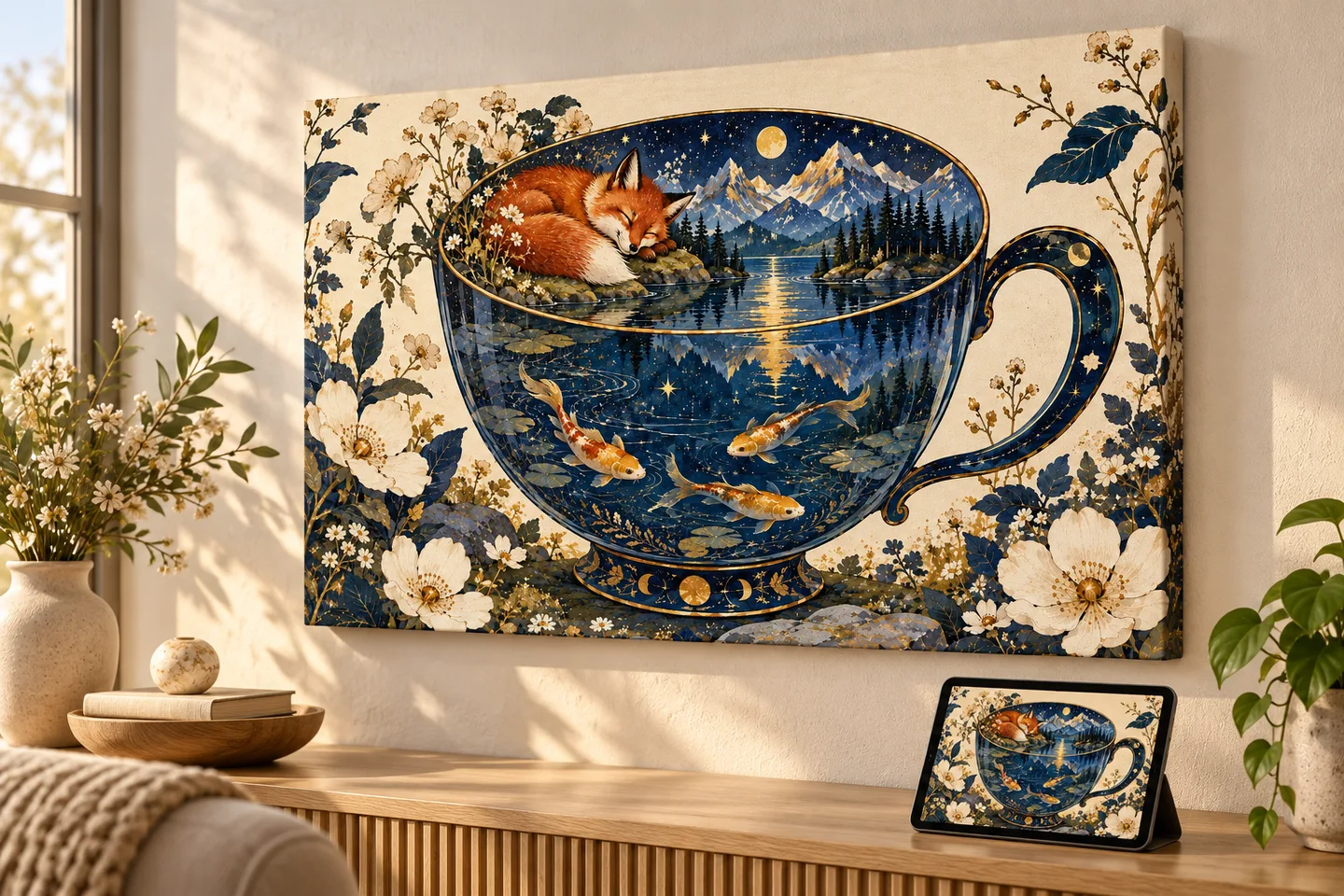
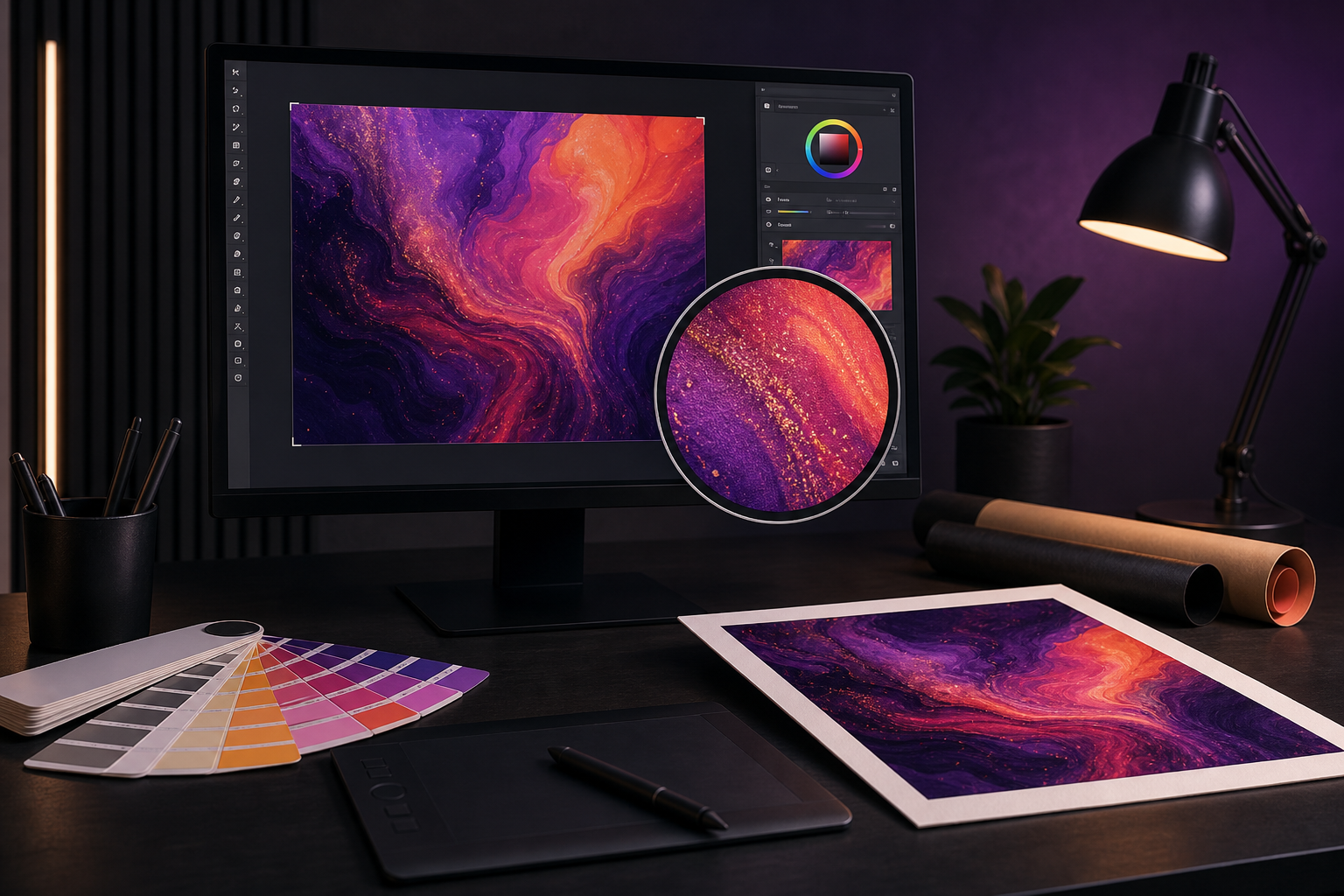
A print-ready image has the right content and placement for the product you choose. It does not have to arrive already enlarged to production dimensions. On PrintAIArt, automatic AI upscaling and preparation are included with every order.
Start with the original download, not a screenshot. Choose your product and options before reviewing the crop. Then check the details that software cannot decide for you: the right face, the right words, and the part of the image that matters.
The five-check upload checklist
- Original: save the best file from the image generator or camera.
- Content: inspect faces, hands, names, and repeated objects.
- Shape: match the image to the selected product's placement area.
- File: use PNG, JPEG, or WebP, up to 10 MB.
- Placement: review the crop, edges, openings, and any wrapped sides before payment.
Which image file should I upload?
| Format | Useful for | What to check |
|---|---|---|
| PNG | Illustrations and graphics with clean edges | File size can be larger; stay within the upload limit |
| JPEG | Photos and richly textured images | Avoid repeated lossy saves and visible blocky compression |
| WebP | Supported modern image exports | Keep the cleanest version rather than repeatedly converting |
Changing a compressed JPEG to PNG does not restore lost detail. If the file is too large, make an optimized copy while keeping the original. Do not replace it with a screenshot. PDF and SVG are not supported by this image upload flow.
Make the important details correct first
Read text character by character. Check that eyes, hands, faces, and meaningful personal details look intentional. Small errors can become easier to notice on a physical print. Correct them before ordering rather than expecting upscaling to understand what they should say or depict.
For a name-based gift, a short phrase on a clear background is usually easier to review than ornate lettering mixed into a busy scene. For a family photo, prioritize recognizable faces over decorative detail.
Match the shape and review the crop
A square, a tall phone case, and a wide desk mat have different composition needs. Filling a different shape can remove content. More resolution does not bring cropped subjects back.
- Canvas: keep meaningful detail away from wrapped edges.
- Desk mat: keep the main subject visible around your keyboard.
- Mug: inspect placement around the curved surface and handle.
- Phone case: account for camera openings and rounded corners.
Let included upscaling handle enlargement
Automatic AI upscaling is included with every order. Upload your best original. We prepare it for the selected product and print area, so you do not need to buy an upscaler or manually enlarge the file. AI upscaling can support much larger prints and improve apparent sharpness and detail. Severe blur, missing information, or incorrect generated text still need attention.
A resolution label such as “300 DPI” is not proof of detail. Pixel dimensions, print size, source quality, and preparation work together. For definitions, read DPI, PPI, and AI upscaling explained; for example output dimensions, see the print-size reference.
Expect a print to look different from a lit screen
A display emits light and a printed surface reflects it. Extremely bright colors and subtle dark tones may look different on paper, ceramic, or fabric. Check that the important parts remain readable at normal screen brightness. The placement preview is not a physical color proof.
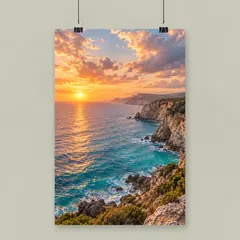
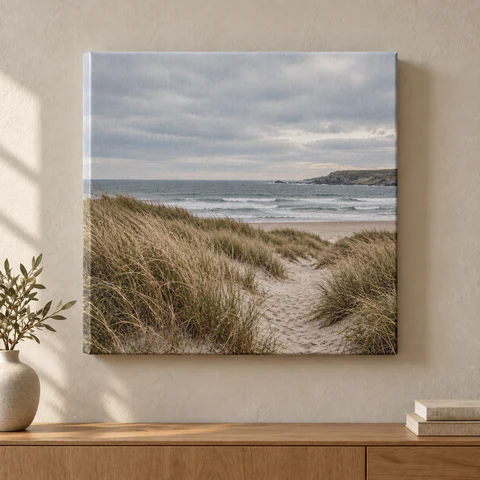
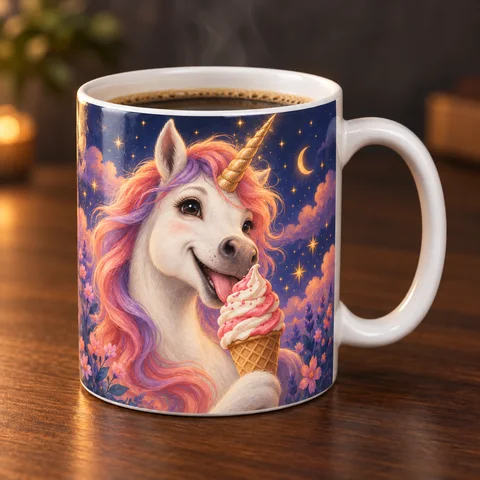
Illustrative product images from our catalog. Choose a product, then add your own image.
Finish in the right order
- Choose a product and its options.
- Add your original image or create a design.
- Review and adjust placement.
- Check price and shipping, then pay.
For saving images from a particular generator, use the ChatGPT guide or Gemini and Nano Banana guide. For a difficult source image, contact us before ordering.
About this guide
Prepared by PrintAIArt, a seller of personalized printed products. Product options and upload requirements were checked against the current catalog and ordering flow on September 30, 2026. Product scenes are illustrative mockups, not evidence of a physical print test. Final preparation and fulfillment include operational review. Contact us about your image or a correction.