
Can You Print AI Art As-Is? Why Print AI Art Automatically Upscales Your Image
Yes, in many cases you can print AI art as-is.
That is the short answer most people are looking for.
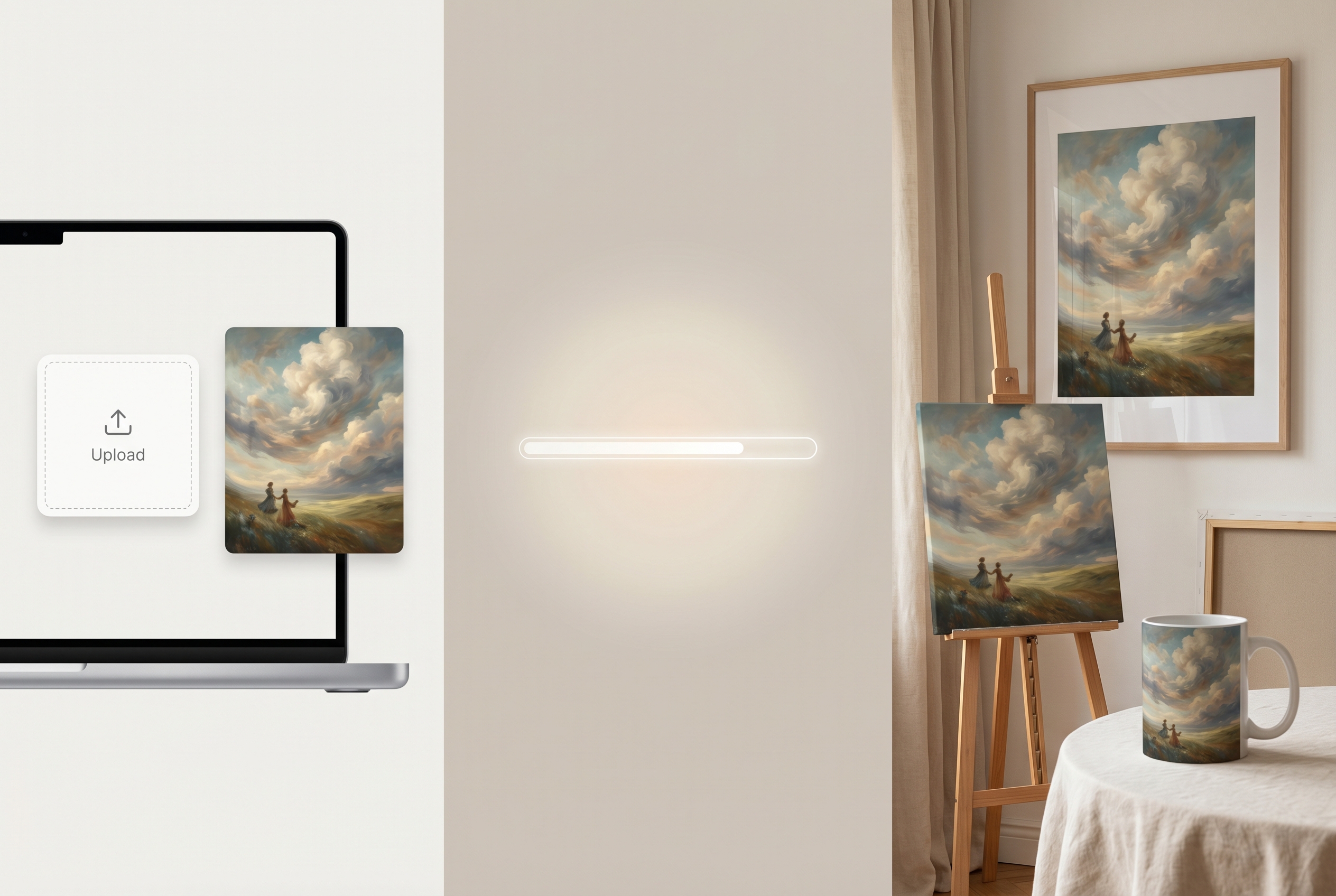
If you already have an AI image you love, you often do not need to stop and learn manual print prep before ordering. With Print AI Art, uploaded images are automatically upscaled, which helps make the path from digital artwork to physical product much simpler.
So instead of worrying that you need to resize, sharpen, or rebuild the file yourself, the better first question is usually this: Does the image look good, and does it fit the product you want? If the answer is yes, you may be much closer to printing than you think.
In most cases, you do not need to manually prep AI art first
A lot of people assume AI art printing starts with technical chores: resizing, checking DPI, learning export settings, or hunting for an upscaler before they can even upload.
For many buyers, that is unnecessary friction.
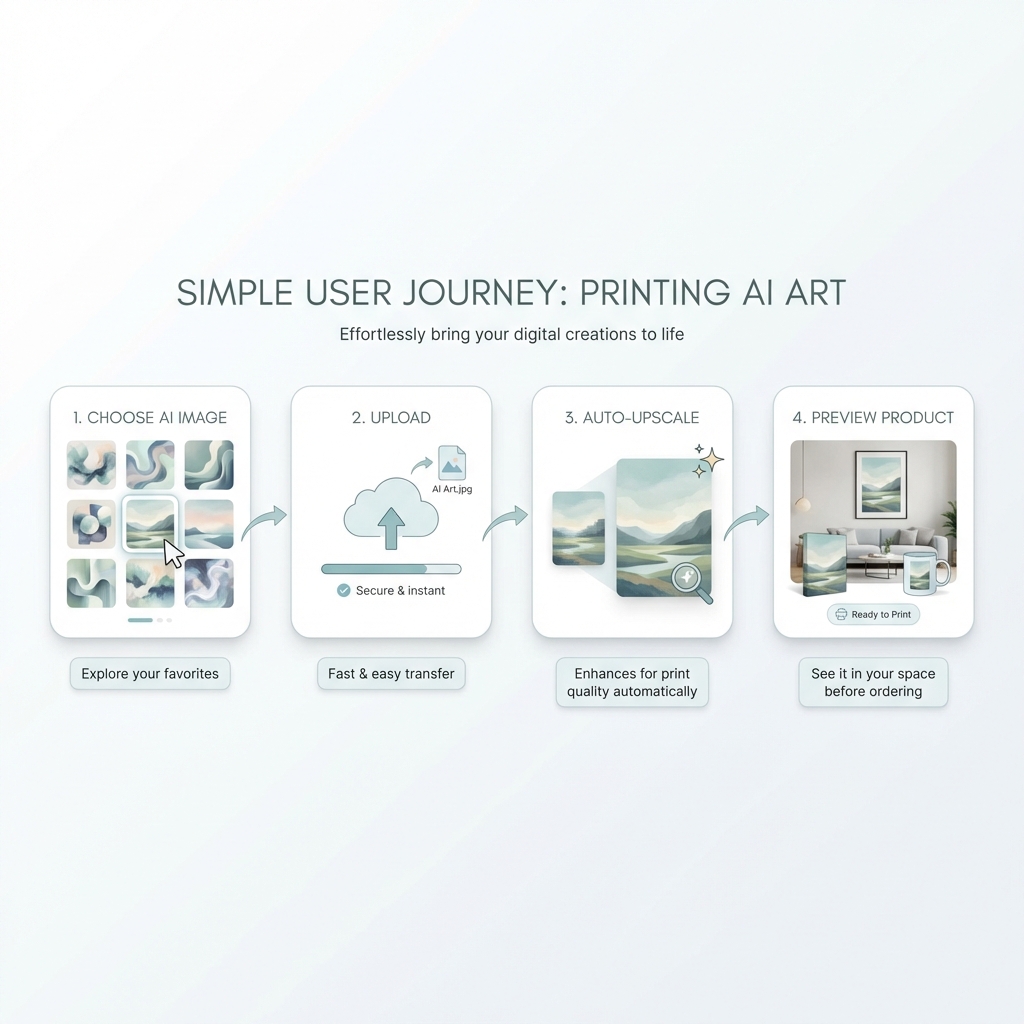
Print AI Art is built to make the process easier. When you upload your image, the platform automatically upscales it for print, which means many customers can move forward without doing manual print prep on their own.
Start with the image you already like.
The file gets help for print behind the scenes.
Choose a product and review the fit.
Move from digital art to a real item faster.
That is especially helpful if you generated an image with ChatGPT, Midjourney, or another AI tool, love the artwork but are unsure whether the file is big enough, or just want a straightforward path to ordering.
If you want the simple route, start with the image you have and upload it here.
What Print AI Art does automatically
The biggest difference is that Print AI Art does not leave you alone with a raw AI file and a list of technical requirements.
The platform automatically upscales your image as part of the print workflow, helping many files look better suited for physical products without requiring you to do that work manually first.
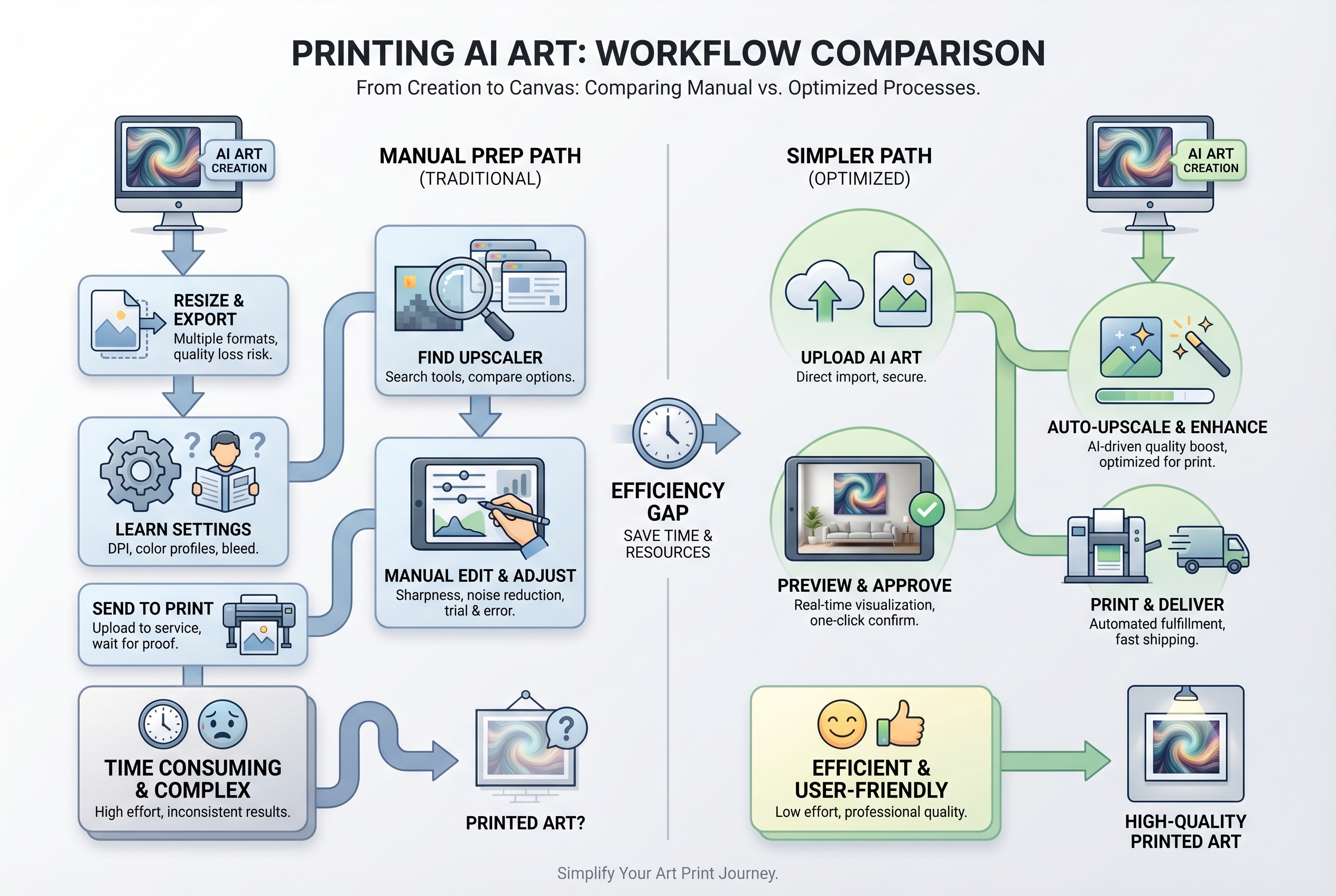
- you can often upload the image you already have
- you usually do not need to resize it yourself first
- you do not need to start with a separate print-prep workflow just to see if your art can work
- the process stays focused on getting your image onto a real product
You can see the broader workflow on the How It Works page.
When you may still want to check a few things
Automatic upscaling removes a lot of the hassle, but it does not mean every image is perfect for every product in every crop.
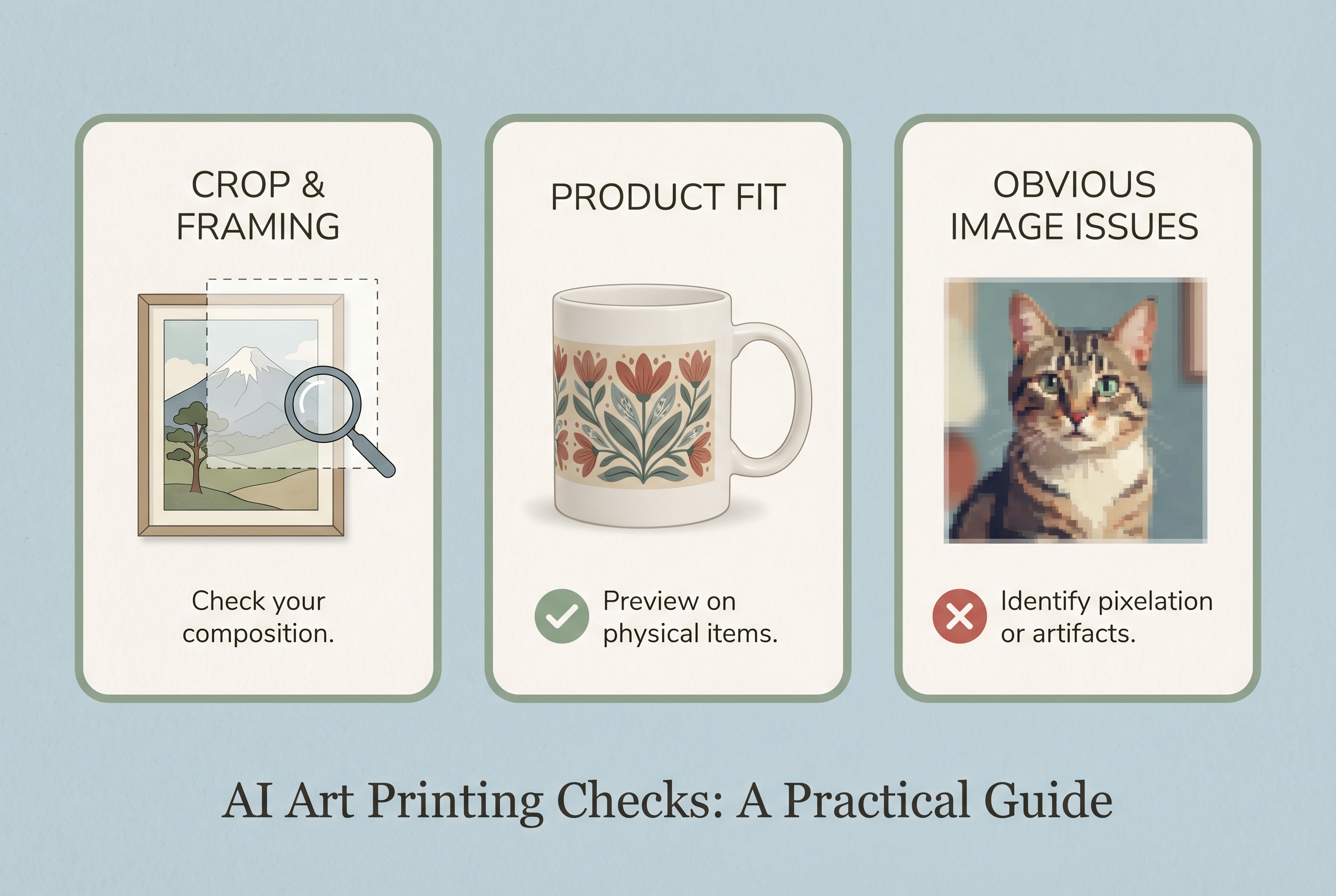
A beautiful square image may need a different crop for a rectangular poster, shirt, or puzzle. Keep the main subject safely inside the frame.
Centered artwork may work well on apparel, while scenic or detailed art may feel better on wall pieces or larger formats.
If the original file has blur, broken text, awkward anatomy, or distracting AI artifacts, those issues are still worth noticing before you print.
The key point is simple: you usually do not need to do manual prep first, but it is still smart to choose a product and preview with intention.
Why auto-upscaling matters across different products
Not every product asks the same thing from an image. That is one reason automatic upscaling is so valuable.
It helps bridge the gap between a digital AI image and the real-world requirements of physical products like posters and wall art, canvas prints, mugs and other giftable items, puzzles, and apparel.
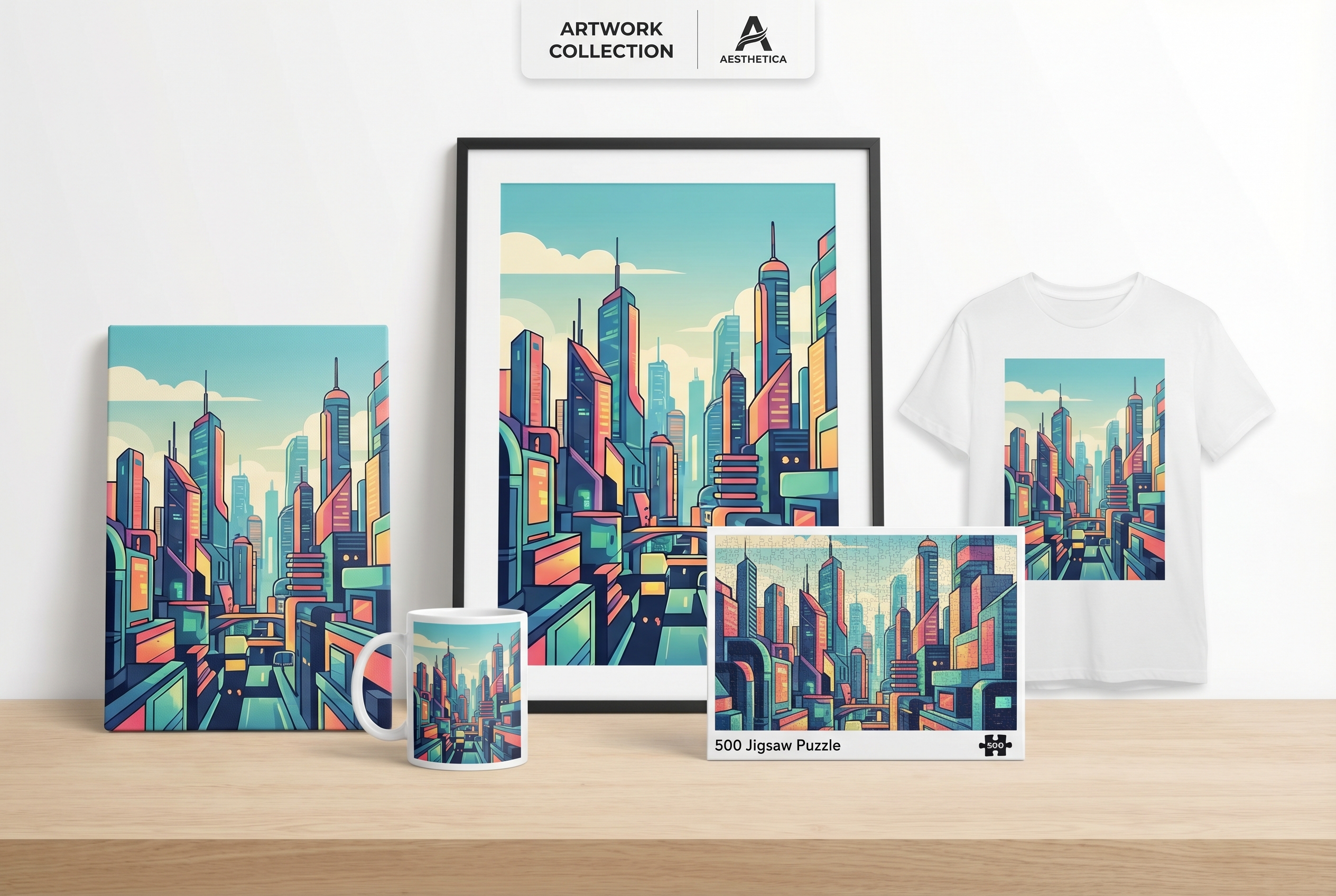
If you browse the full products page, you can quickly see how one image can work across different formats.
Larger display pieces often make people nervous because they expect they need to enlarge the file first. Auto-upscaling helps reduce that fear.
Smaller products are often more forgiving, so a strong AI image may be ready with very little effort on your side.
These still benefit from a clear composition and a good crop, but the workflow is easier when you are not forced to resize first.
- Choose the AI image you actually want to keep.
- Pick the product that fits the artwork best.
- Upload it and let Print AI Art handle the upscaling step.
That is enough for many orders. If you do not have an image yet, you can create one with the AI Image Creator and then move into printing from there.
Do AI images ever need manual prep?
Sometimes, yes, but much less often than many people assume.
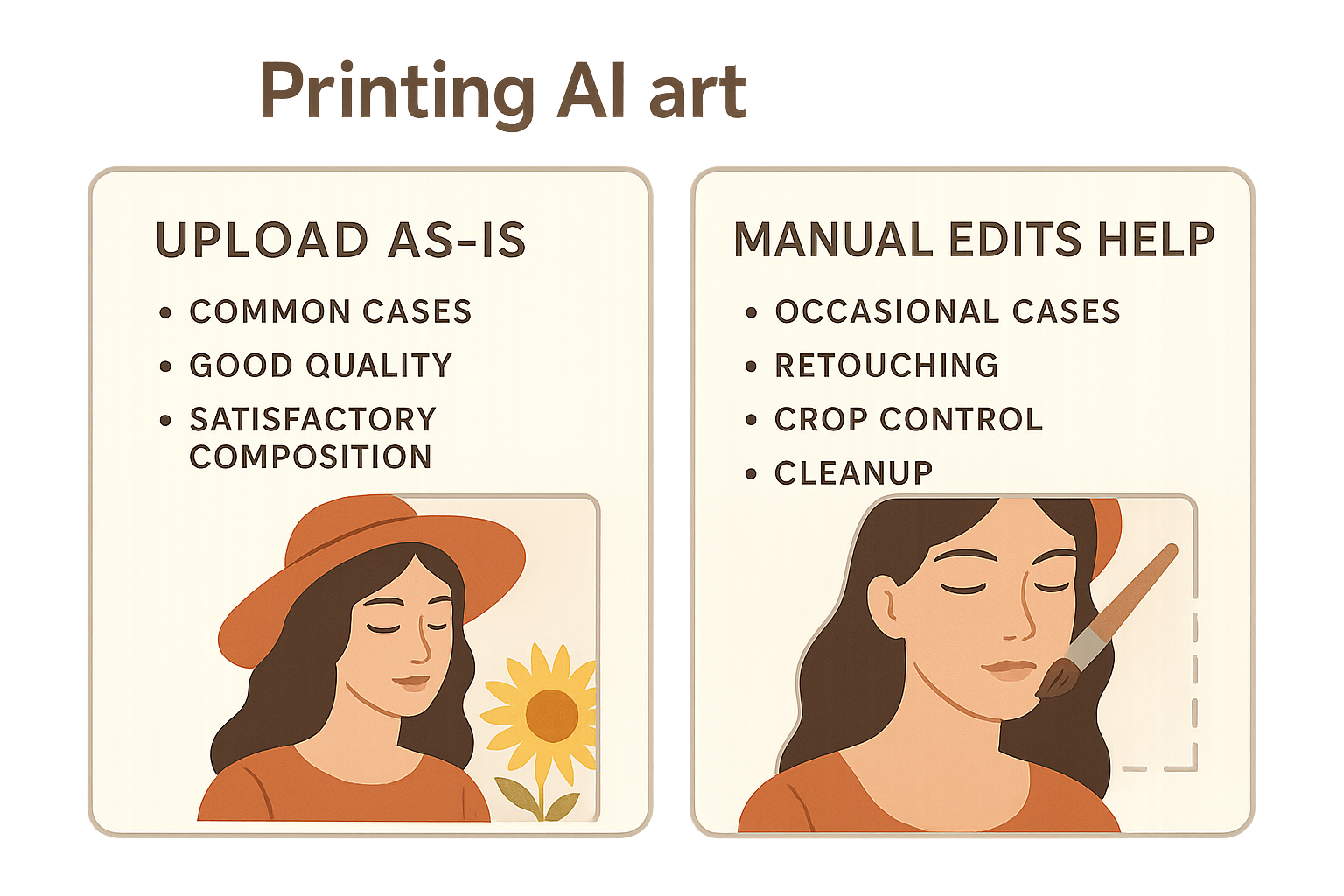
Manual prep can still help when you want very specific crop control, need to retouch important details, want to clean up the composition before printing, or are comparing multiple versions of the same artwork.
But that is different from saying manual prep is required before printing at all. For many shoppers, it is not. If you want more technical background, read the ChatGPT print quality guide, the broader Ink & AI hub, or the deeper explainer on how to make AI images print-ready.
Ready to turn your AI image into a print?
If you already have an image you love, the easiest next step is to upload it, choose the product that fits it best, and let Print AI Art handle the print-prep lift.
FAQ
Can you print AI art without resizing it yourself?
Yes, often you can. Print AI Art automatically upscales uploaded images, so many users do not need to manually resize their files before ordering.
Do AI images need upscaling for print?
Some do, especially depending on the product and source file, but the key difference here is that Print AI Art handles that automatically as part of the workflow.
What if my AI image is not perfect?
It may still print well. Many buyers do not need a perfectly prepped file to get started. The main things worth checking are crop, framing, and obvious visual issues in the original image.
Should I learn DPI and print settings before uploading?
Not usually. If your goal is simply to print your image, you often do not need to master that first.
Final answer
So, can you print AI art as-is?
In many cases, yes.
That is exactly why Print AI Art is appealing. Instead of pushing you into manual print prep right away, it automatically upscales your image so you can often upload first and move straight toward the product you want.
If you already have an image you love, the easiest next step is to start your print here.